

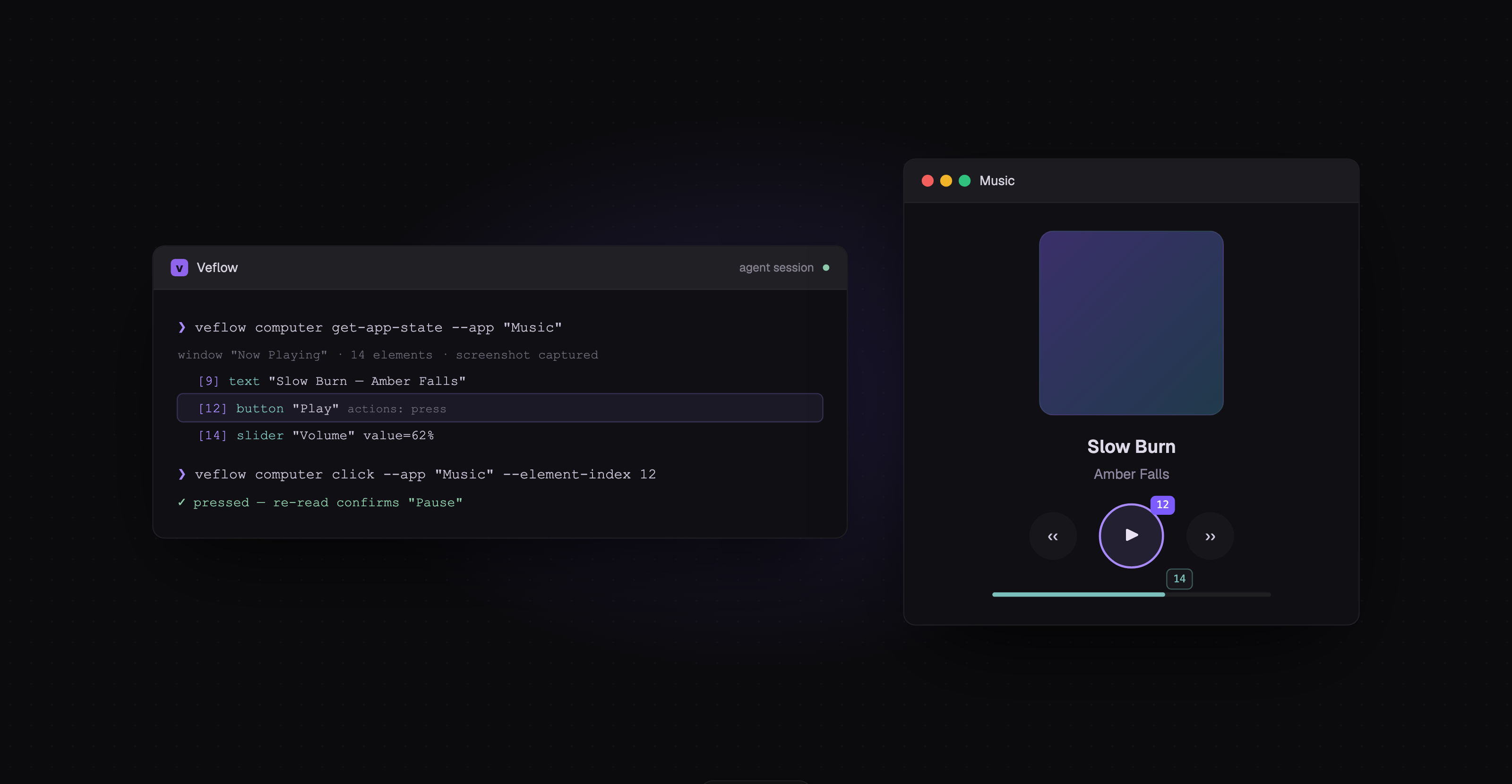
After an agent edits a settings dialog, you still need to check it in the running app. Veflow Computer lets the agent open that dialog, inspect its controls, and check the result.
The veflow computer CLI works from a Veflow terminal. Agents can use it to operate the app you're building or read information from other desktop apps.
Reading the accessibility tree
Veflow Computer uses the macOS accessibility tree to find controls by their roles, labels, values, and supported actions. It also captures a screenshot for visual context.
veflow computer get-app-state --app "Spotify" --json
The result includes indexed UI elements. The agent can act on an element, then read the window again to check what changed.
veflow computer click --app "Spotify" --element-index 14
veflow computer set-value --app "Notes" --element-index 3 --value "Ship 1.1.0"
Element indexes come from the latest app state. The examples above illustrate the commands; the indexes will differ in your windows.
- Read-back checks:
set-valuereads the value after writing it. - Element targeting: controls can be addressed by index when the app exposes them to accessibility.
- Screenshots: the agent can inspect layout and visual details alongside the tree.
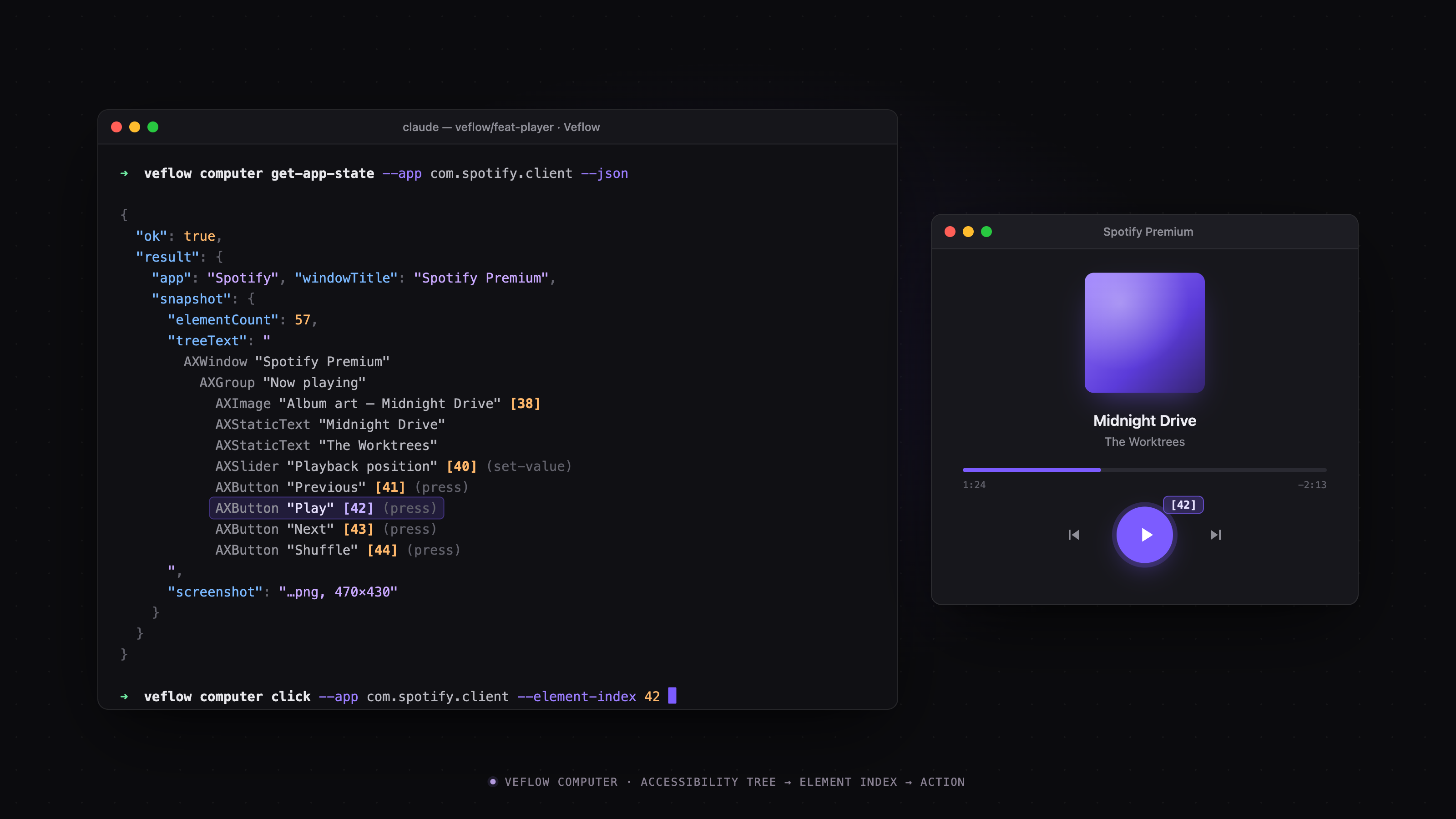
The app state includes UI element details and a screenshot.
What you can ask an agent to do
The CLI includes commands for listing apps, reading windows, clicking, typing, scrolling, dragging, and pressing keys. A bundled skill explains how agents should use them.
Useful requests include:
- Open the updated dialog and check that the new field is present.
- Read an error message from a native app.
- Fill a form and check the resulting values.
The agent needs to inspect the app after acting. Sending a click or keystroke alone doesn't establish that the intended change happened.
Permissions
A dedicated Veflow Computer Use helper requests Accessibility and Screen Recording permissions. The desktop setup wizard shows whether each permission has been granted.
You can revoke them in System Settings → Privacy & Security. You can also skip this setup and continue using the rest of Veflow.
The helper has its own app bundle so its permissions can persist across Veflow updates.
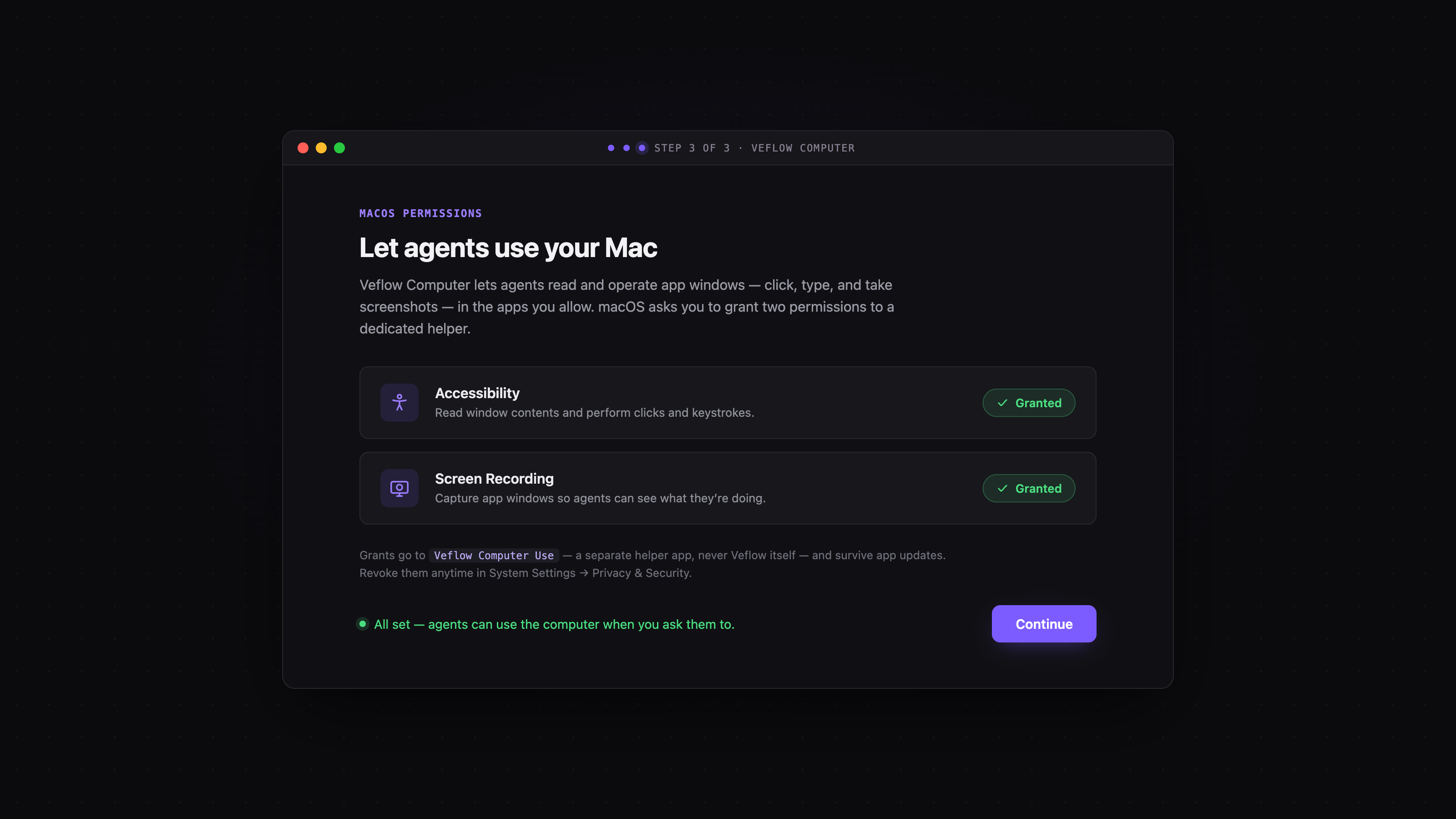
Check or revoke the helper’s permissions in System Settings.
Credit to Orca
The Swift helper is adapted from Orca's MIT-licensed implementation. The license is included in the app. Veflow provides the CLI integration, desktop connection, and agent skill.
macOS first
Veflow Computer is part of the 1.1.0 desktop release, alongside Veflow Memory. Computer use currently supports macOS.
Update the desktop app, enable the helper's permissions, and ask your agent to inspect a window to try it.