

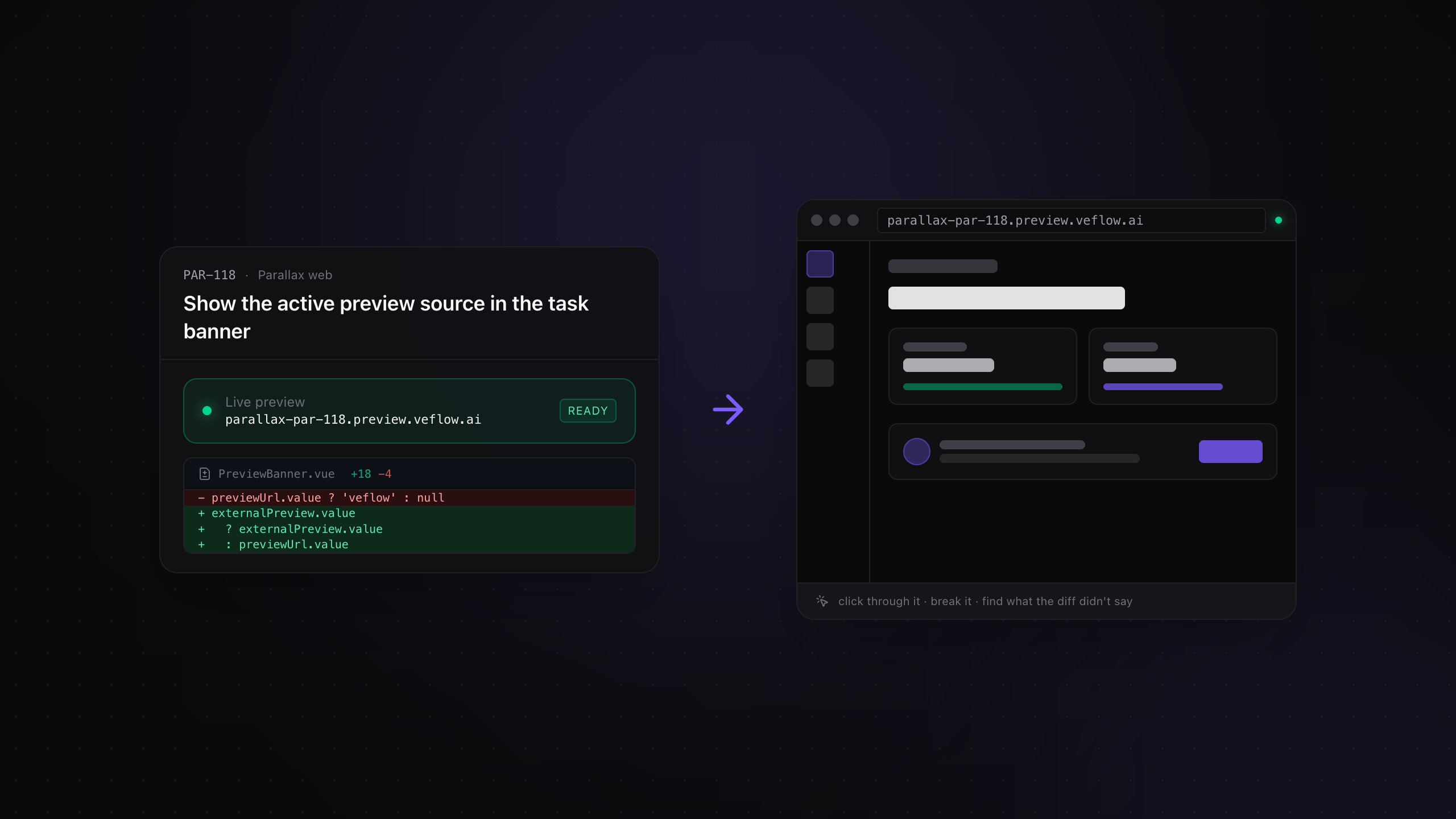
A diff can look correct while the running app has a broken layout or a form that won't submit. A preview URL gives you somewhere to check those details before merging.
Veflow puts available preview links on the task, beside the conversation and code review.
What makes a preview useful
A reviewer needs a link that's easy to find and points to the change under review. Ideally, that address stays the same as the PR receives updates.
Veflow's hosted preview uses a task address such as <team-slug>-<task-id>.preview.veflow.ai. New pushes update the app behind that address.
Hosted previews support browser-facing projects that can run in the preview container. Startup takes time; the task shows progress while the app starts.
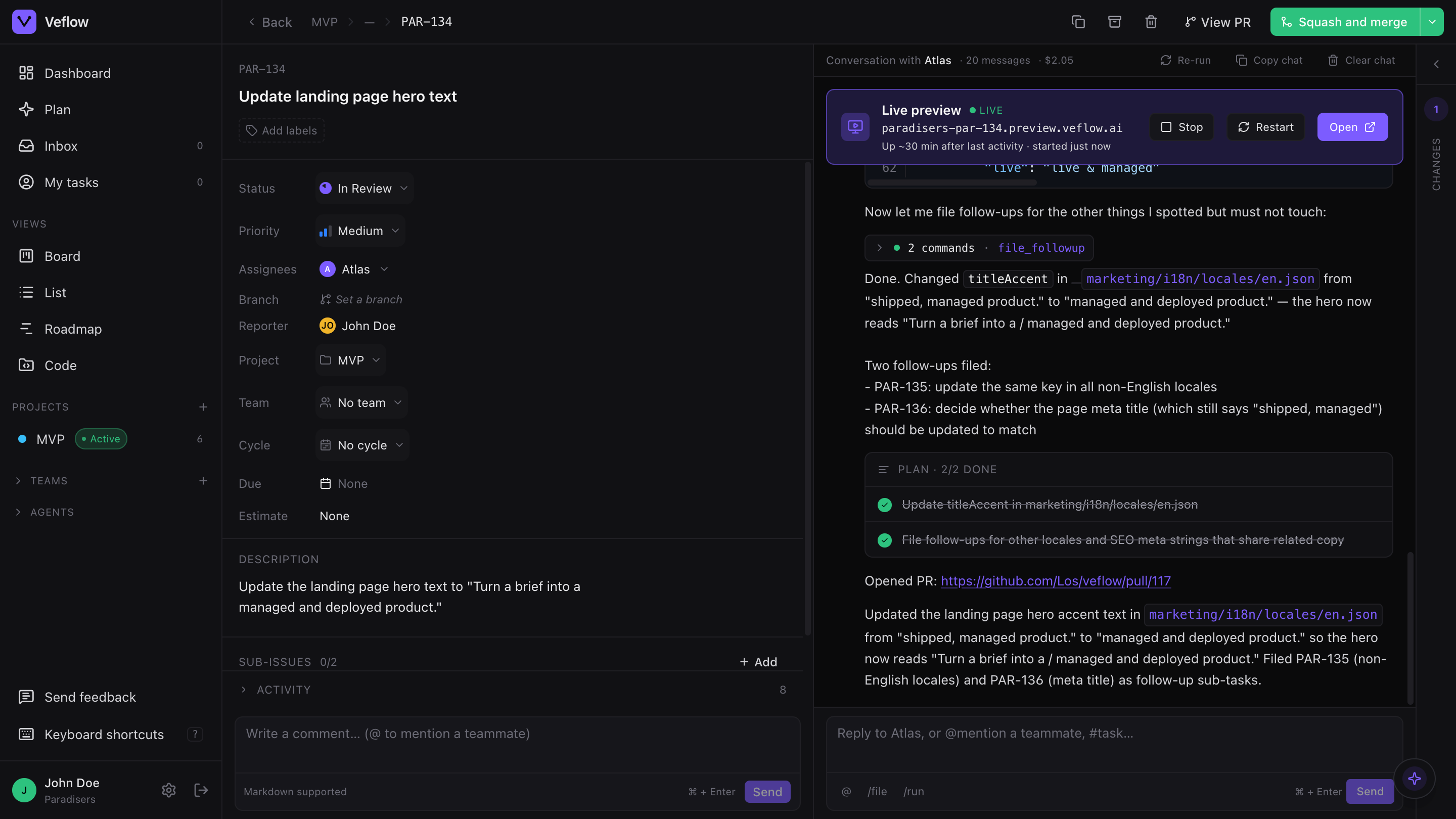
Open the preview beside the task’s status and diff.
Reviewing agent-written code
An agent may run tests and report success without checking the interaction you care about. The same can happen with human-written code.
Open the preview and try the changed flow yourself. Check it against the brief, including error states and cases the tests may have missed.
What to check
Layout and states. Try a narrow screen, an empty list, a validation error, and a loading state where those apply to the change.
Interactions. Submit the form, open the menu, or follow the new route. A screenshot can't tell you whether the control works.
The current revision. Confirm that the preview has updated before reviewing a new push. Use the diff to see what changed since your last pass.
Previews from your existing tools
If your repository already has preview deployments, Veflow can show those links too. It reads comments from supported providers on the GitHub PR and adds their URLs to the task.
The preview dropdown lists sources separately, including Vercel, Netlify, Cloudflare Pages, Render, Chromatic, and Veflow when available.
Choose the preview that matches the work you're reviewing. A docs change and an application change may need different links.
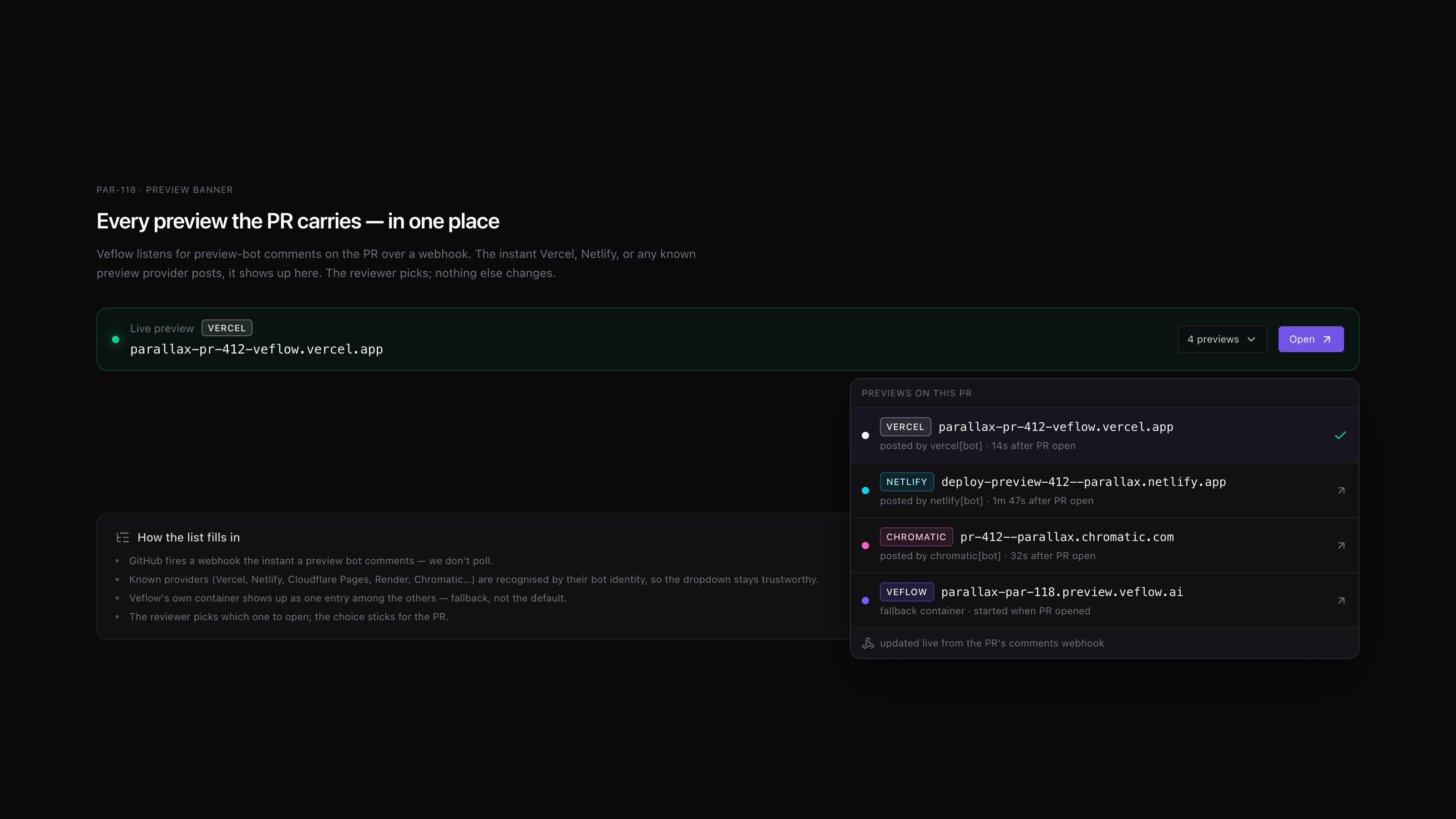
Choose from the preview sources attached to the PR.
Hosted preview limits
Veflow's preview container runs web projects with a development server. Native mobile apps, desktop builds, and workers without an HTTP interface don't get a Veflow-hosted app preview.
Those tasks can still open PRs. If your CI posts a supported external preview link, Veflow can show it on the task.
Hosted previews sleep after inactivity to free compute. Restart one from the task when you need it again.
Open your first preview
After the agent opens a PR, check the task's preview banner. The initial boot commonly takes 30–120 seconds, depending on the repository and dependencies.
External links appear as the connected providers post their PR comments. You can choose between available sources from the dropdown.
Check the running change, read the diff, and leave any feedback on the PR before merging.